

One of the hardest things for most people who want to publish books, especially coloring books on Amazon kindle direct publishing (KDP), is formatting their books correctly. A lot of people struggle with the Amazon KDP platform not because it is impossible to use, but because they don’t know how to properly format the interior of their books.
The truth is, if you format your book interior correctly from the beginning, you will save yourself a lot of time, stress, and upload errors. But to do this properly, you need to understand the formatting rules and use the right tools. And honestly, this can be very time-consuming when you are just starting out.
That is exactly why I created these templates.
- What Are Bleeds and Margins? (KDP Explained Simply)
- 8.5” x 11” Coloring Book Interior Canva Template for KDP – no Bleed
- 8.5” x 8.5” Square Coloring Book Interior Canva Template for KDP – no Bleed
- Other Coloring Book Sizes Interior Canva Templates for Kdp – no Bleed
- Things to Keep in Mind When Using the Templates
- Final Thoughts
- Report a Problem
If you are a beginner, these templates are going to help you a lot. I had the same problems when I started — especially with bleeds and margins — and it took me a long time to fully understand it. But you don’t have to go through all that stress like I did.
In this article, I’m going to give you Canva templates for every trim size that Amazon KDP accepts, so you can quickly create your coloring book interior without wasting time formatting everything from scratch.
What Are Bleeds and Margins? (KDP Explained Simply)
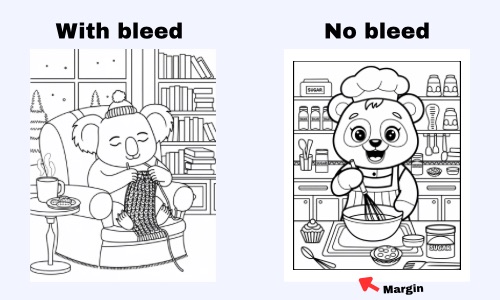
When you publish a book on Amazon KDP, your book will be printed and then trimmed (cut) around the edges to make the pages neat and even.
Printers are not always perfectly accurate, so the pages are printed slightly bigger and then cut down to the final size. This cutting process is called trimming.
Because the book will be trimmed, Amazon KDP gives specific guidelines called bleeds and margins to make sure important parts of your pages don’t get cut off.
Margins
Margins are the safe space inside the page, near the edges. You should keep all important content (drawings, text, borders) inside the margins so nothing gets cut during trimming. Think of margins as a safe zone.
Bleed
Bleed is when your artwork or background extends all the way to the edge of the page.
For example:
- Pattern coloring books
- Full background illustrations
- Pages where the drawing touches the edges
When you use bleed, your artwork actually extends past the trim line so that when the book is cut, there are no white edges left.
Simple Way to Think About It
- Margins = safe space inside the page
- Bleed = extra space outside the page for edge-to-edge printing
For the templates in this article, I created templates without bleed, which means they use margins so your pages stay safely inside the printable area.
8.5” x 11” Coloring Book Interior Canva Template for KDP – no Bleed
This is the most popular coloring book size on Amazon KDP because:
- It gives a lot of space for coloring
- Great for children
- Great for beginners
- Also good for adult coloring books
- One of the largest sizes KDP offers
If you are not sure which size to start with, start with 8.5” x 11”.
Here is the Canva template link:
8.5” x 8.5” Square Coloring Book Interior Canva Template for KDP – no Bleed
This is the second most popular coloring book size, especially for modern coloring book brands. Brands like Coco Wyo and other trendy coloring book publishers use it because the books look cute, modern, and unique.
Here is the Canva template link:
Other Coloring Book Sizes Interior Canva Templates for Kdp – no Bleed
Amazon KDP allows many different trim sizes, and you can use any of them if you want to create something unique or different from other publishers. Some people like smaller books, wide books, or custom sizes depending on their niche. So I created templates for all the trim sizes that KDP accepts.
Below are links to all the Canva templates for different book sizes.
Things to Keep in Mind When Using the Templates
All template are made for books with 24 – 150 pages and that includes all the blank pages too. I used the default kdp measures which is inches. Using the templates is very simple. All you have to do is:
- Click on the template link.
- Click “view template” and login.
- It will then open a new project in Canva.
- You can start editing the template.
The template already comes with:
- Title page
- Legal/Copyright page
- Coloring page
- Blank page
Coloring books start on the right side page, so the this is important. If you don’t want to use the title page or legal page, make sure you delete both of them, not just one, so your pages don’t get mixed up.
How to Add Your Coloring Pages
- Upload your coloring pages to Canva.
- Go to All Pages.
- Select the coloring page and blank page.
- Go back to normal view
- Duplicate them as many times as you want (30 pages, 40 pages, etc.).
- Then drag your coloring images into the coloring pages.
How to Download for Amazon KDP
When you are done:
- Click Share
- Click Download
- Choose PDF Print
- Select flatten all images “optional”
- Change color system to CMYK
- Download the PDF
Then your file is ready to upload to Amazon KDP.
Final Thoughts
Formatting a coloring book for Amazon KDP can be very confusing when you are just starting, especially when dealing with margins, bleeds, trim sizes, and page formatting. That is why I created these Canva templates; so you don’t have to spend hours trying to figure everything out yourself.
You can just open the template, add your coloring pages, download the PDF, and upload to KDP. It will save you a lot of time and make the whole process much easier.
Report a Problem
I did my best to make sure all the links work properly. But I am only human; so if you have any issues using the templates or there is a broken link, you can click the button below to reach me.